


Ultra Panda has no listing on the Google Play Store or Apple App Store. It installs from an app file instead. Android users install the file after allowing installs from unknown sources in their device settings. iPhone users open Ultra Panda through the mobile browser instead. You sign in with credentials issued by BitOfGold. There's no account to create inside the app. Learn more about the Ultra Panda download steps below. But before that, let’s take a closer look at the Ultra Panda app.
Ultra Panda App Overview

With the app, Android users can play without opening a browser each time, but they can also use the browser if they prefer not to install anything. You don’t create an account inside the app. BitOfGold sends your login after you make a deposit, and you use the same credentials for both the app and browser. Before installing, make sure your device runs Android 5.0 or later and has at least 250 MB of free space. Ultra Panda isn’t officially listed on the Play Store or App Store, which is common for social casino platforms. That’s why the installation steps below differ from those for a regular app download.
If you're setting up an account for the first time, “How BitOfGold Works” walks you through registration and deposits in full.
Ultra Panda Download for Android: All Steps
Here's the whole process, start to finish.
- Register or log in to your BitOfGold account.
- Go to the deposit section and select Ultra Panda.
- Complete your deposit.
- Check your email. BitOfGold sends the Ultra Panda download APK link along with your login credentials.
- Open Settings on your Android device, then go to Security or Privacy.
- Find "Install Unknown Apps" or "Unknown Sources" and turn it on for your browser or downloads app.
- Open the link from your email and download the file.
- Tap the downloaded file, then tap Install when prompted.
- Once installation finishes, open the app and log in with the credentials from your email.
The unknown sources setting is often where people get stuck. By default, Android blocks files from outside the Play Store. Turn the settings on, and the app will install. You can turn this setting off again after installing if you prefer.
Ultra Panda 777 Download for iOS
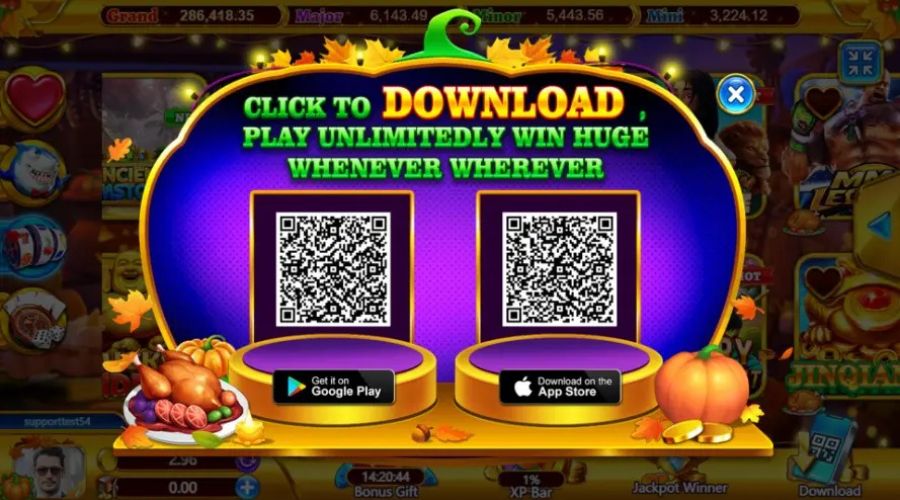
Ultra Panda isn’t available in the Apple App Store, since Apple doesn’t list this type of app. iPhone users can access Ultra Panda through their mobile browser instead. Open Safari or Chrome and log in to BitOfGold. After your deposit is confirmed, use the platform link from your email and log in with your credentials. Ultra Panda Mobi loads directly in the browser, and the experience matches what Android users get through the app.
You can add it to your home screen, and it will “feel like the app”. In Safari, open the platform link, tap the share icon, and choose “Add to Home Screen.” The new icon will take you straight to the login screen next time, and you won’t have to search your email again.
Common Ultra Panda Download Errors and Fixes
Ultra Panda not installing? It's usually one of these four issues.
|
Error |
Fix |
| "App not installed" | Usually a corrupted download, low storage, or a conflicting older version. Delete the file, free up space, and re-download. |
| Download keeps failing or timing out | Switch from mobile data to Wi-Fi, clear your browser cache, and try again. |
| App crashes on launch | Go to Settings, then Apps, find Ultra Panda, and clear the cache. Reinstall if the crash continues. |
| "Parse error" during install | The file didn't download correctly. Delete it and download it again on a stable connection. |
If these steps don’t solve the problem, ask BitOfGold support for a new download link. This is a safer option than looking for the file on other sites.
Is the Ultra Panda App Safe?
The app is safe as long as you use the link BitOfGold emails you after your deposit. That link is connected to your account and confirmed the same way as your login credentials.
The real risk comes from repackaged copies found outside the official process. Searching for “Ultra Panda APK” brings up many third-party download pages, which are often the source of altered or outdated files. Before installing, check that the file size matches what BitOfGold’s email says, and make sure the app doesn’t ask for permissions such as camera or contact access.
If a download page asks for your account details before you’ve installed anything, close it right away. BitOfGold will never ask for your login information outside their platform.
Log in process after installation

The app doesn’t create an account for you, and there’s no sign-up screen inside. You get your login from BitOfGold’s deposit process, just like with the browser version.
Once you've registered a BitOfGold account, deposited, and received your credentials by email, open the app and enter them exactly as provided. From there, you're in the same game lobby whether you access it through the app or the browser.
New to the game types themselves? How to play Ultra Panda covers the controls, scoring, and game modes.
FAQ
Does the Ultra Panda app cost anything to download?
No, the Ultra Panda download is free. You’ll just need to add funds to your account when you want to make a deposit and start playing.
Do I need to update the app manually?
Yes, you do. Because the app isn’t on the Play Store, it won’t update by itself. From time to time, check your BitOfGold account for a new version and install it just like you did before.
Will I lose my progress if I reinstall the app?
No, your progress is saved to your gaming account, not your device. After reinstalling, just log in again, and your balance and account details will be there.